Event Driven Automation of OCI Data Integration Tasks
Introduction
When building production data integration and transformation pipelines, automation is a must. Data has to flow from source to target with required frequency and without human intervention. The less latency the business requires, the more important it is to execute the pipeline as soon as the source data is available. And, if we are able to raise an event when the source data is ready, we can use it to trigger the execution of the pipeline.
In the previous post Transforming JSON documents with OCI Data Integration I have described how OCI Data Integration Task can be used to transform large and complex JSON documents to data format suitable for analytics. The JSON documents were stored as JSON Lines files in OCI Object Storage.
This post demonstrates how the same OCI Data Integration task can be executed immediately and automatically after the file with JSON documents is uploaded to the OCI Object Storage.
The scenario is a great example of how several OCI services work together to provide the automation. OCI Object Storage emits events when a new object arrives; OCI Events triggers actions when events are raised; OCI Function can call any API in OCI including OCI Data Integration; and OCI Data Integration implements the actual data integration pipeline.
Automation Scenario
-
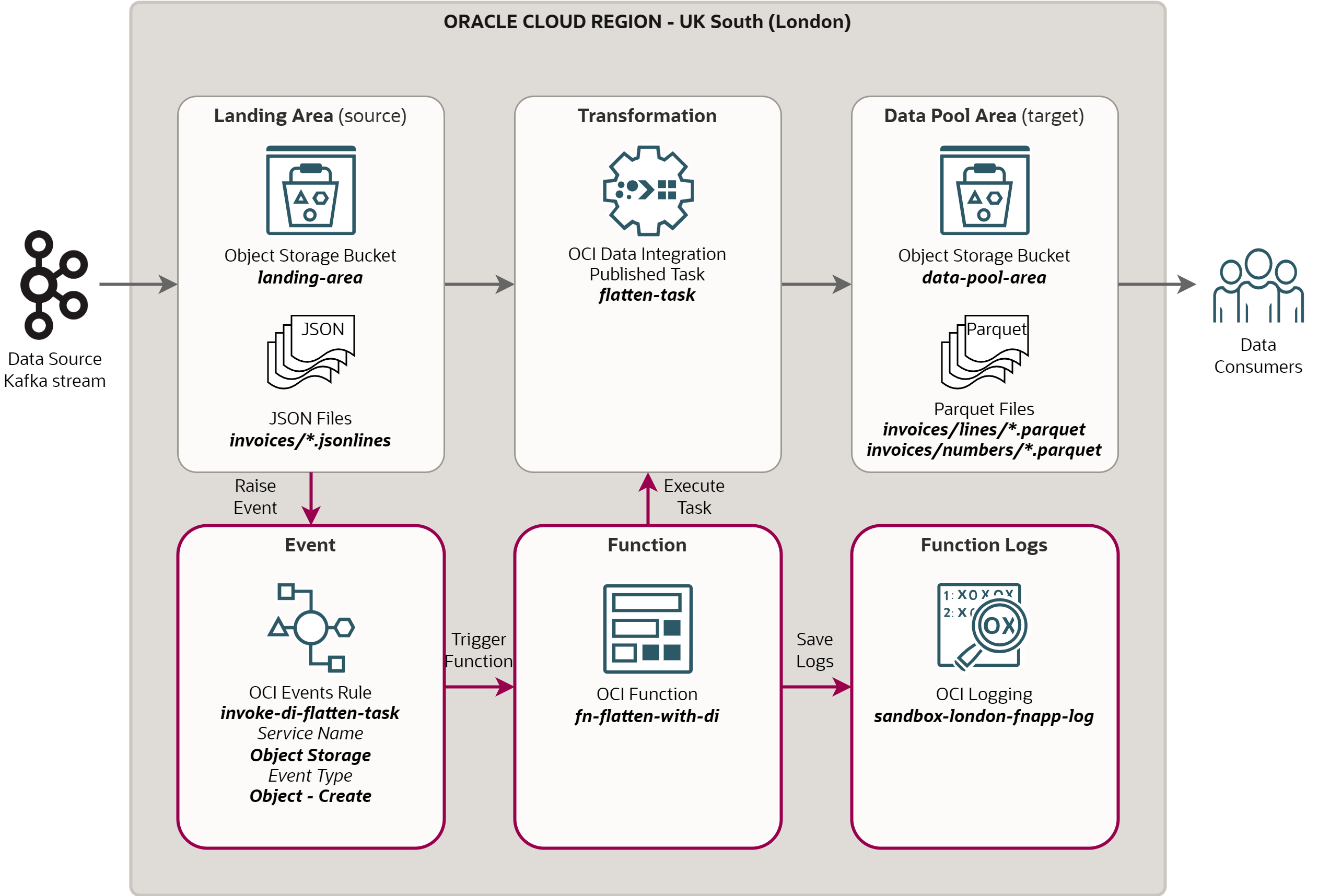
Source data lands in the Landing Area on OCI Object Storage, in the bucket
landing-area. The names of files in the Landing Area follow the patterninvoices/*.jsonlines. -
When a new file is created in the bucket
landing-area, an OCI Eventinvoke-di-flatten-taskis raised. Note the bucket must be enabled to emit object-level events. -
OCI Event triggers OCI Function
fn-flatten-with-di. The names of the source bucket and object are passed to the function. The other task parameters are defined in the function configuration. -
OCI Function
fn-flatten-with-diinvokes the OCI Data Integration Taskflatten-taskwith the required parameters (such as source bucket and source object). The function logs any error or information message into OCI Logging. -
OCI Data Integration task
flatten-taskruns the transformation data flow with parameters passed by the function. The task is executed asynchronously - the function queues the task for execution but it does not wait for it to start and finish. -
If several different files arrive at the same time, the event is raised for every one of them. In this case, the function and the transformation task are invoked for every new file and the transformation flows run concurrently for multiple files.
The scenario is depicted on the diagram below. The new automation components are shown in the red color.
Executing OCI DI Task from Cloud Shell
Before discussing the automation flow, let’s look at how OCI Data Integration task may be
executed from OCI CLI. OCI CLI in Cloud Shell is great environment to prototype unfamiliar
OCI operations, before trying to do the same via OCI API or SDK. Note you can run OCI CLI
in interactive mode with oci -i if you are not sure about CLI syntax.
oci data-integration task-run create \
--workspace-id <DI Workspace OCID> \
--application-key <DI Application Key> \
--registry-metadata '{"aggregator-key":"<DI Task Key>"}' \
--config-provider 'file://~/flatten/2022-08-12-flatten.json'
data-integration task-run create- CLI command to run OCI Data Integration task.--workspace-id- OCID of the OCI Data Integration workspace.--application-key- Key of the OCI Data Integration application, where the task is deployed.--registry-metadata- Used to specify the Task Key in theaggregator-keyproperty.--config-provider- This parameter provides the values (“bindings”) of task parameters. The values can be specified either as JSON string on the command line, or externally in the JSON file. I recommend using JSON file, as it is easier to understand and maintain.
JSON file ~/flatten/2022-08-12-flatten.json with parameter values looks like this:
{
  "bindings": {
    "INPUT_OBJECT_NAME": {
      "simpleValue": "invoices/2022-08-12-documents.jsonlines"
    },
    "OUTPUT_OBJECT_NAME_LINES": {
      "simpleValue": "invoices/lines/2022-08-12-lines.parquet"
    },
    "OUTPUT_OBJECT_NAME_NUMBERS": {
      "simpleValue": "invoices/numbers/2022-08-12-numbers.parquet"
    },
    "INPUT_BUCKET": {
      "rootObjectValue": {
        "key": "dataref:<DI Connection Key>/landing-area",
        "modelType": "SCHEMA"
      }
    },
    "OUTPUT_BUCKET": {
      "rootObjectValue": {
        "key": "dataref:<DI Connection Key>/data-pool-area",
        "modelType": "SCHEMA"
      }
    }
  }
}
The data flow task flatten-task requires three paramaters specifying name of the input
object and names of the output files. These parameters are simple string parameters, with
the value provided in the simpleValue field.
The task also requires parameters specifying input and output Object Storage buckets.
These parameters require more complex structure in the rootObjectValue field.
Particularly, it is necessary to specify that modelType is SCHEMA, and to provide
Connection Key and name of the bucket in the key field.
Note that the above syntax is valid for Object Storage. If you want to use different type
of source or target (e.g., Autonomous Database), the value of the key field must be
changed. I recommend looking at the post from David Allan to understand how to construct
bindings for other types of parameters:
Executing Tasks using OCI CLI in Oracle Cloud Infrastructure Data Integration.
Executing OCI DI Task from OCI Function
Now that we understand what are all the parameters required to run OCI DI Task programmatically, we can do the same from an OCI Function. This is more complicated than using OCI CLI, as we have to not only write the function, but also configure function security, deploy the function, define configuration parameters, and integrate the function with OCI Events.
Note this post does not describe all the configuration steps required to create OCI Functions. Particularly, it assumes you already have privileges for managing OCI Functions and Registry; that you configured Fn Project on Cloud Shell; and created Fuction Application. For these steps, please refer to Functions QuickStart on Cloud Shell, or instructions in OCI Functions Console, under the Getting Started tab.
Security Configuration
An OCI Function that will run an OCI DI Task must be authenticated and authorized by OCI IAM. The recommended authentication method is via resource principal, which does not require authentication tokens or signing keys. Instead, the function is included into a Dynamic Group using a rule, and it “inherits” privileges assigned to the Dynamic Group. With this approach, the function becomes a principal that can call various OCI APIs depending on the privileges of the Dynamic Group.
Dynamic Group
I used a Dynamic Group with the rule that includes all Functions in the specified compartment. Note the rule could be more specific - I could use OCID of a particular function or specify tags of functions that will be included in the Dynamic Group.
ALL {resource.type = 'fnfunc', resource.compartment.id = '<Compartment OCID>'}
Policy
The policy allows Functions in the Dynamic Group to use the OCI DI Workspace with the Task
we want to run. Using the request.permission condition I restricted usage of the
Workspace to execution of Tasks only.
allow dynamic-group <Dynamic Group> to use dis-workspaces in compartment <Compartment Name> where all {target.workspace.id = '<DI Workspace OCID>', request.permission = 'DIS_WORKSPACE_OBJECT_EXECUTE'}
Function Configuration
OCI Functions support writing code in Java, Python, Node, Go, Ruby, and C#. I decided to use Python, because of familiarity with both the language and OCI Python SDK. I used Fn Project client to initialize, deploy and configure the function. The easiest way to do so is via Cloud Shell which comes with Fn Project client preinstalled.
Initial Deployment
As the first step, I created the function fn-flatten-with-di in the application
sandbox-london-fnapp with the following commands.
fn init --runtime python fn-flatten-with-di
cd fn-flatten-with-di
fn -v deploy --app sandbox-london-fnapp
-
fn initcommand creates the function directory with boilerplate filesfunc.py(Python code),func.yaml(configuration file), andrequirements.txt(list of Python libraries). -
fn -v deploycommand builds the Docker image, pushes the image to OCI Container Registry (OCIR), and deployes to OCI Functions.
Libraries
In the next step I extended the file requirements.txt. This file must contain not just
fdk with Fn Project function development kit for Python, but also oci module, which
contains OCI Python SDK. Note that other standard modules like io, json, or logging
are included by default and do not have to be listed.
fdk>=0.1.48
oci
Configuration Parameters
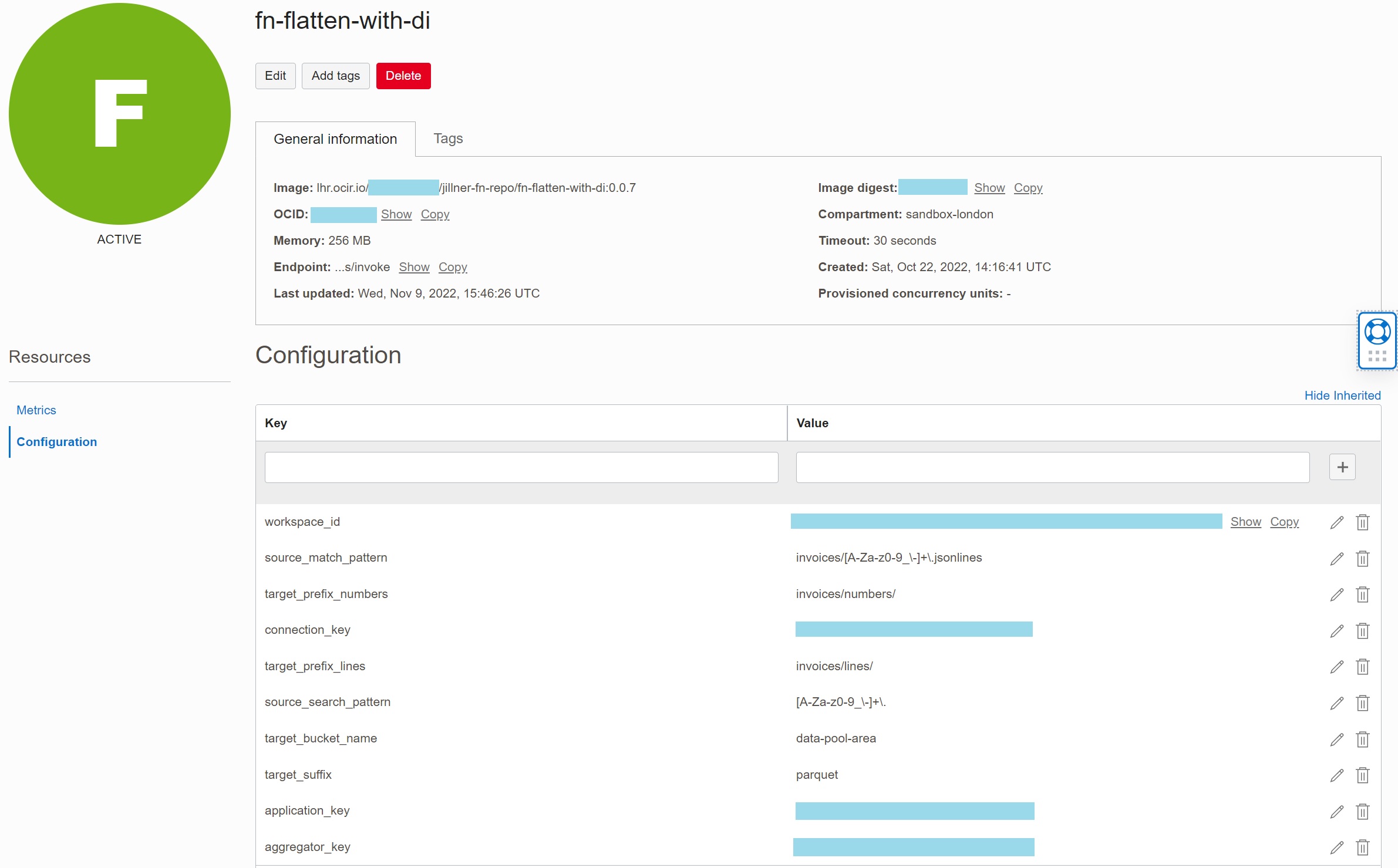
I also defined configuration parameters for the fn-flatten-with-di. These are the static
key/value pairs required for running my OCI DI Task. The parameters are passed to the
function when it is invoked.
fn config function sandbox-london-fnapp fn-flatten-with-di workspace_id          '<DI Workspace OCID>'
fn config function sandbox-london-fnapp fn-flatten-with-di application_key       '<DI Application Key>'
fn config function sandbox-london-fnapp fn-flatten-with-di aggregator_key        '<DI Task Key>'
fn config function sandbox-london-fnapp fn-flatten-with-di connection_key        '<DI Connection Key>'
fn config function sandbox-london-fnapp fn-flatten-with-di source_match_pattern  'invoices/[A-Za-z0-9_\-]+\.jsonlines'
fn config function sandbox-london-fnapp fn-flatten-with-di source_search_pattern '[A-Za-z0-9_\-]+\.'
fn config function sandbox-london-fnapp fn-flatten-with-di target_bucket_name    'data-pool-area'
fn config function sandbox-london-fnapp fn-flatten-with-di target_prefix_lines   'invoices/lines/'
fn config function sandbox-london-fnapp fn-flatten-with-di target_prefix_numbers 'invoices/numbers/'
fn config function sandbox-london-fnapp fn-flatten-with-di target_suffix         'parquet'
Configuration parameters may be also defined and reviewed in OCI Console.
Logging
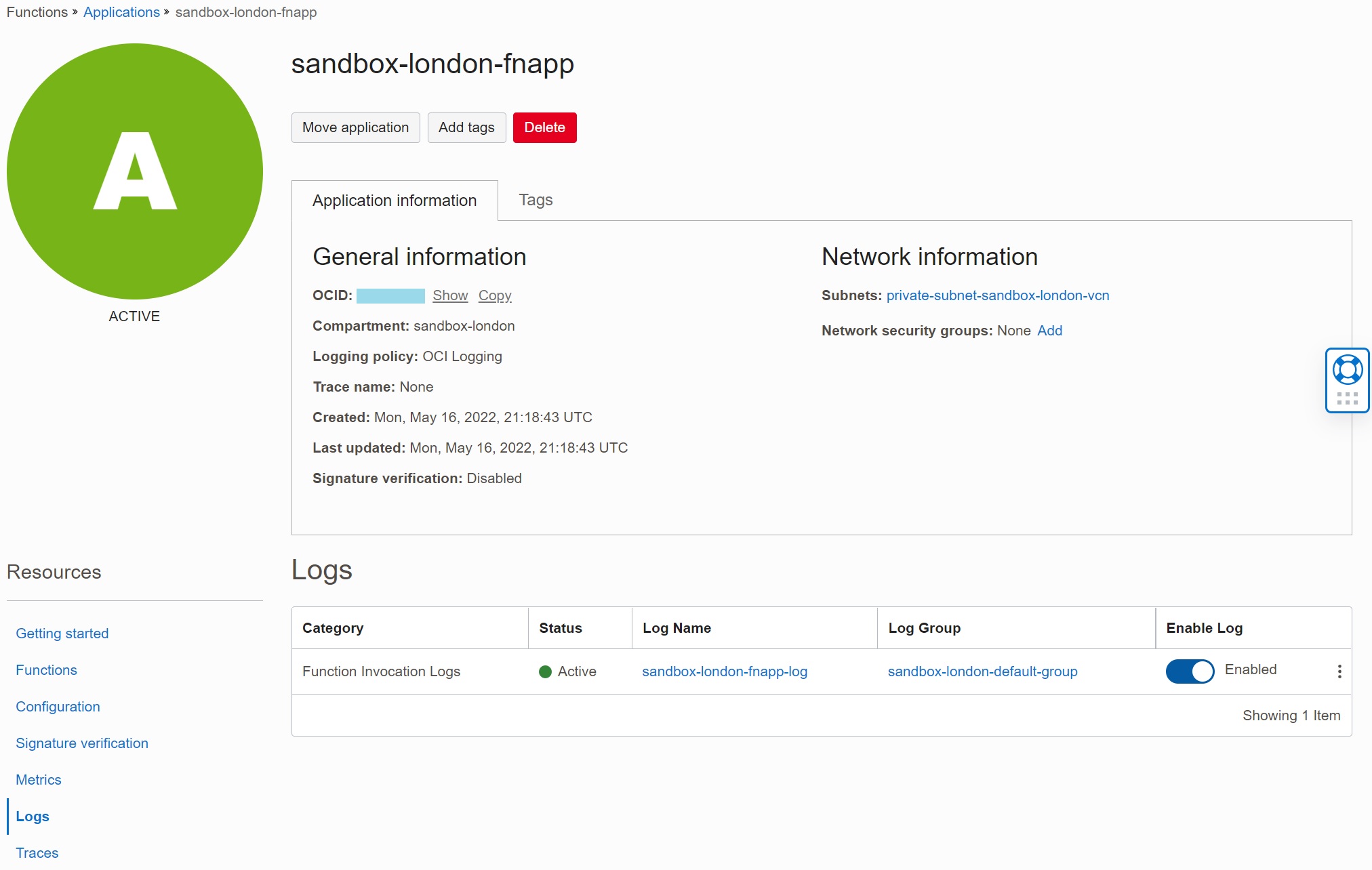
To debug and tune the function I highly recommend enabling logging. Without logging you have no way to view errors and information messages. Logging is enabled on the level of function application. The default logging target is OCI Logging service. When you enable logging, you have to specify Compartment where to create logs, Log Group, and Log Name. Once this is done, you can use Log Search to see the output from the function.
Function Walkthrough
In this chapter I describe the function code which replaces func.py file created in the
Initial Deployment. The code is broken into several logical
sections for easier understanding. I tested that the code works as expected, however it is
not of production quality. Particularly, it does not contain any error handling and I did
not test most of error conditions.
Modules
The function requires several Python library modules:
import io
import json
import datetime
import logging
import re

from fdk import response
import oci
iofor working with data streams, as event payload is passed as data stream.jsonfor working with JSON documents, as event payload uses JSON format.re- standard modules for working with regular expressions, used to match object names.fdk- module with Fn Project function development kit for Python.oci- module with OCI SDK for Python.
Handler
The entry point for the Python code is handler function. Note the entry point is defined
in the func.yaml file and it may be redefined if required.
def handler (ctx, data: io.BytesIO=None):
ctxcontains static configuration parameters.datais the data stream with the payload information.
Retrieve Configuration Parameters
Configuration parameters are available as Python dictionary. The following code retrieves parameter values from the configuration. It also validates all the parameters are defined.
    # Get configuration parameters
    configuration = ctx.Config()
    v_workspace_id = configuration['workspace_id']
    v_application_key = configuration['application_key']
    v_aggregator_key = configuration['aggregator_key']
    v_connection_key = configuration['connection_key']
    v_source_match_pattern = configuration['source_match_pattern']
    v_source_search_pattern = configuration['source_search_pattern']
    v_target_bucket_name = configuration['target_bucket_name']
    v_target_prefix_lines = configuration['target_prefix_lines']
    v_target_prefix_numbers = configuration['target_prefix_numbers']
    v_target_suffix = configuration['target_suffix']
    logging.info('configuration: source_match_pattern={}, source_search_pattern={}, target_bucket_name={}, target_prefix_lines={}, target_prefix_numbers={}, target_suffix={}'.format(v_source_match_pattern, v_source_search_pattern, v_target_bucket_name, v_target_prefix_lines, v_target_prefix_numbers, v_target_suffix))
Retrieve Runtime Parameters
Runtime parameters are provided by the event. When an event is triggered, it executes the function with a payload consisting of JSON document with parameters describing the event. The parameters differ for every type of service and event. In our case, the service is Object Storage and the event is Object Create. Example of the JSON document with the payload is described in Sample Event Payload. The following code retrieves the required parameters from the event.
    # Get event parameters
    input_params = json.loads(data.getvalue())
    v_event_type = input_params["eventType"]
    v_compartment_name = input_params["data"]["compartmentName"]
    v_namespace_name = input_params["data"]["additionalDetails"]["namespace"]
    v_source_bucket_name =  input_params["data"]["additionalDetails"]["bucketName"]
    v_source_object_name = input_params["data"]["resourceName"]
    v_source_object_id = input_params["data"]["resourceId"]
    logging.info('payload: event_type={}, source_bucket_name={}, source_object_name={}'.format(v_event_type, v_source_bucket_name, v_source_object_name))
Check Object Name
Before invoking DI Integration Task, we need to make sure the event was raised for the right object. The bucket may contain data from many entities, but we need to run the task only for the “Invoice” entity. The next step checks whether the object name matches the required pattern. After the check, it retrieves part of the source object name that will be used to construct target object.
    # Check that object name matches pattern
    if not re.fullmatch(re.compile(v_source_match_pattern),v_source_object_name):
        logging.warning ('Object "{}" does not match pattern "{}"'.format(v_source_object_name,v_source_match_pattern))
        v_result = { 'result_status' : 404, 'result_message' : 'Object "{}" does not match pattern "{}"'.format(v_source_object_name,v_source_match_pattern) }
        return response.Response( ctx, response_data = json.dumps(v_result), headers = {"Content-Type": "application/json"} )

    # Get target object name without prefix and suffix
    v_target_object_match = re.search(re.compile(v_source_search_pattern),v_source_object_name)
    if not v_target_object_match:
        logging.warning ('Object "{}" does not contain pattern "{}"'.format(v_source_object_name,v_source_search_pattern))
        v_result = { 'result_status' : 404, 'result_message' : 'Object "{}" does not contain pattern "{}"'.format(v_source_object_name,v_source_search_pattern) }
        return response.Response( ctx, response_data = json.dumps(v_result), headers = {"Content-Type": "application/json"} )
    v_target_object_name = v_target_object_match.group()
Get OCI Data Integration Client
OCI Data Integration operations done through OCI Python SDK require Data Integration Client object with the signer. As we use Dynamic Group, the signer is resource principal signer, which does not need any parameter.
    # Get OCI DI client using resource principal
    v_oci_signer = oci.auth.signers.get_resource_principals_signer()
    v_oci_di_client = oci.data_integration.DataIntegrationClient(config={}, signer=v_oci_signer)
Invoke OCI Data Integration Task
And finally, we can invoke OCI Data Integration Task via create_task_run() function. The
tricky part is to create parameter bindings, which are needed to pass parameters from
Configuration and from Runtime payload to the Task. The logic of bindings is the same
as when using OCI CLI (see Executing OCI DI Task from Cloud Shell),
but it is necessary to use SDK’s models instead of JSON string.
    # Define parameters to run OCI DI task
    v_registry_metadata = oci.data_integration.models.RegistryMetadata(aggregator_key=v_aggregator_key)

    v_config_provider = oci.data_integration.models.CreateConfigProvider(
        bindings= {
            'INPUT_OBJECT_NAME' : oci.data_integration.models.ParameterValue(simple_value=v_source_object_name),
            'OUTPUT_OBJECT_NAME_LINES' : oci.data_integration.models.ParameterValue(simple_value='{}{}{}'.format(v_target_prefix_lines,v_target_object_name,v_target_suffix)),
            'OUTPUT_OBJECT_NAME_NUMBERS' : oci.data_integration.models.ParameterValue(simple_value='{}{}{}'.format(v_target_prefix_numbers,v_target_object_name,v_target_suffix)),
            'INPUT_BUCKET' : oci.data_integration.models.ParameterValue(root_object_value=oci.data_integration.models.Schema(model_type='SCHEMA', key='dataref:{}/{}'.format(v_connection_key,v_source_bucket_name))),
            'OUTPUT_BUCKET' : oci.data_integration.models.ParameterValue(root_object_value=oci.data_integration.models.Schema(model_type='SCHEMA', key='dataref:{}/{}'.format(v_connection_key,v_target_bucket_name)))
        }
    )

    v_task_details = oci.data_integration.models.CreateTaskRunDetails(
        registry_metadata=v_registry_metadata,
        config_provider=v_config_provider
    )

    # Invoke OCI DI task
    v_response = v_oci_di_client.create_task_run(
        workspace_id=v_workspace_id,
        application_key=v_application_key,
        create_task_run_details=v_task_details
    )
Return Result
The last step is to return the response which FDK expects.
    # Return result
    logging.info('result: request_status={}, task_run_name={}, task_run_status={}, opc_request_id={}'.format(v_response.status, v_response.data.name, v_response.data.status, v_response.data.opc_request_id))
    return response.Response( ctx, response_data = json.dumps({'message' : 'OCI DI task submitted for execution'}), headers = {"Content-Type": "application/json"} )
Invoking OCI Function from OCI Events
OCI Functions may be called manually from OCI CLI, or programatically from OCI SDK/API or by making signed HTTPS request to the function endpoint. Also, functions may be executed by many OCI services. In our case, we need to invoke the function automatically, by event triggered when an object arrives in the Object Storage.
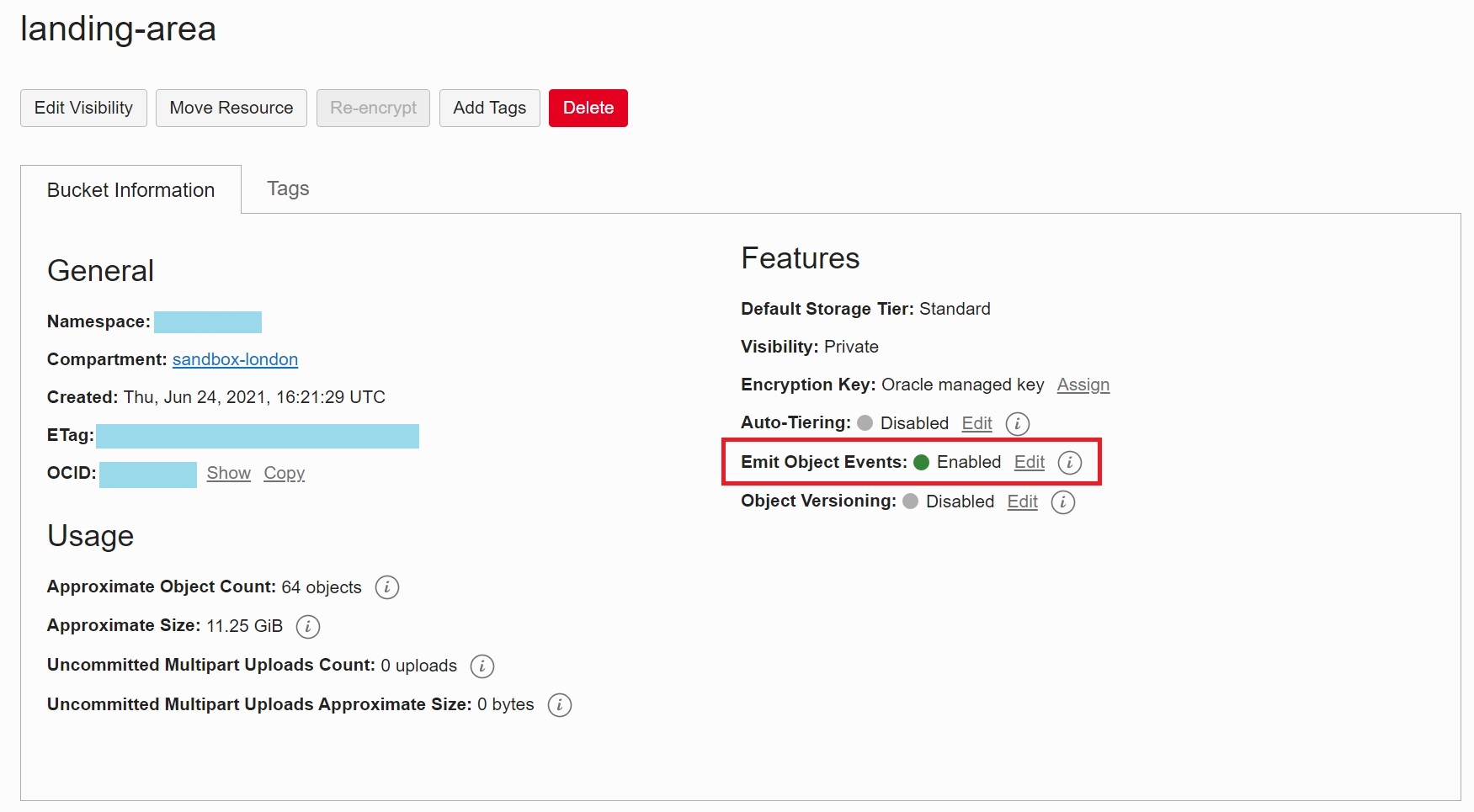
Object Level Events
Object Storage does not emit object level events by default. On the bucket level, it is necessary to enable emiting events.
Event Rule
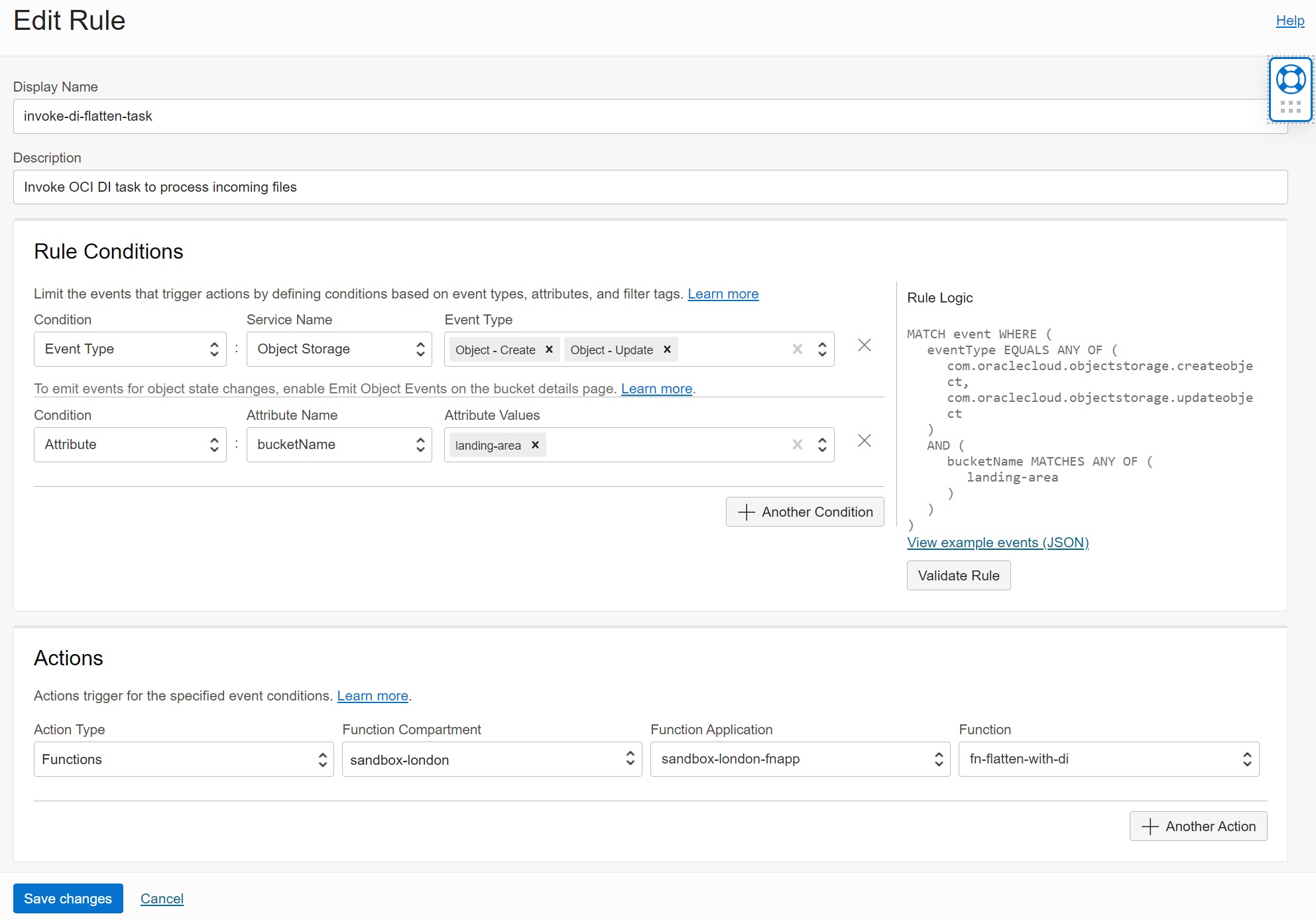
When the function is defined and deployed and the bucket is configured to emit events, we
can configure Event Rule. The Event Rule invokes function fn-flatten-with-di whenever an
object is created or updated in the Object Storage bucket landing-area. Once the rule is
saved, the event is active and the function will be invoked for every new or updated
object in the bucket.
Sample Event Payload
You can verify how the event payload looks like for particular event type by clicking on
the View example events (JSON), visible from the Edit Rule screen in OCI Events console.
For Create Object event the payload looks like this:
{
  "cloudEventsVersion": "0.1",
  "eventID": "unique_ID",
  "eventType": "com.oraclecloud.objectstorage.createobject",
  "source": "objectstorage",
  "eventTypeVersion": "2.0",
  "eventTime": "2019-01-10T21:19:24.000Z",
  "contentType": "application/json",
  "extensions": {
    "compartmentId": "ocid1.compartment.oc1..unique_ID"
  },
  "data": {
    "compartmentId": "ocid1.compartment.oc1..unique_ID",
    "compartmentName": "example_name",
    "resourceName": "my_object",
    "resourceId": "/n/example_namespace/b/my_bucket/o/my_object",
    "availabilityDomain": "all",
    "additionalDetails": {
      "eTag": "f8ffb6e9-f602-460f-a6c0-00b5abfa24c7",
      "namespace": "example_namespace",
      "bucketName": "my_bucket",
      "bucketId": "ocid1.bucket.oc1.phx.unique_id",
      "archivalState": "Available"
    }
  }
}
Testing the Automation Scenario
New Object
To trigger the event and invoke the function fn-flatten-with-di, I uploaded a new file
into the bucket landing-area by using the following OCI CLI command:
oci os object put -bn landing-area -ns <Namespace> --file test.jsonlines --name 'invoices/test.jsonlines'
Logs
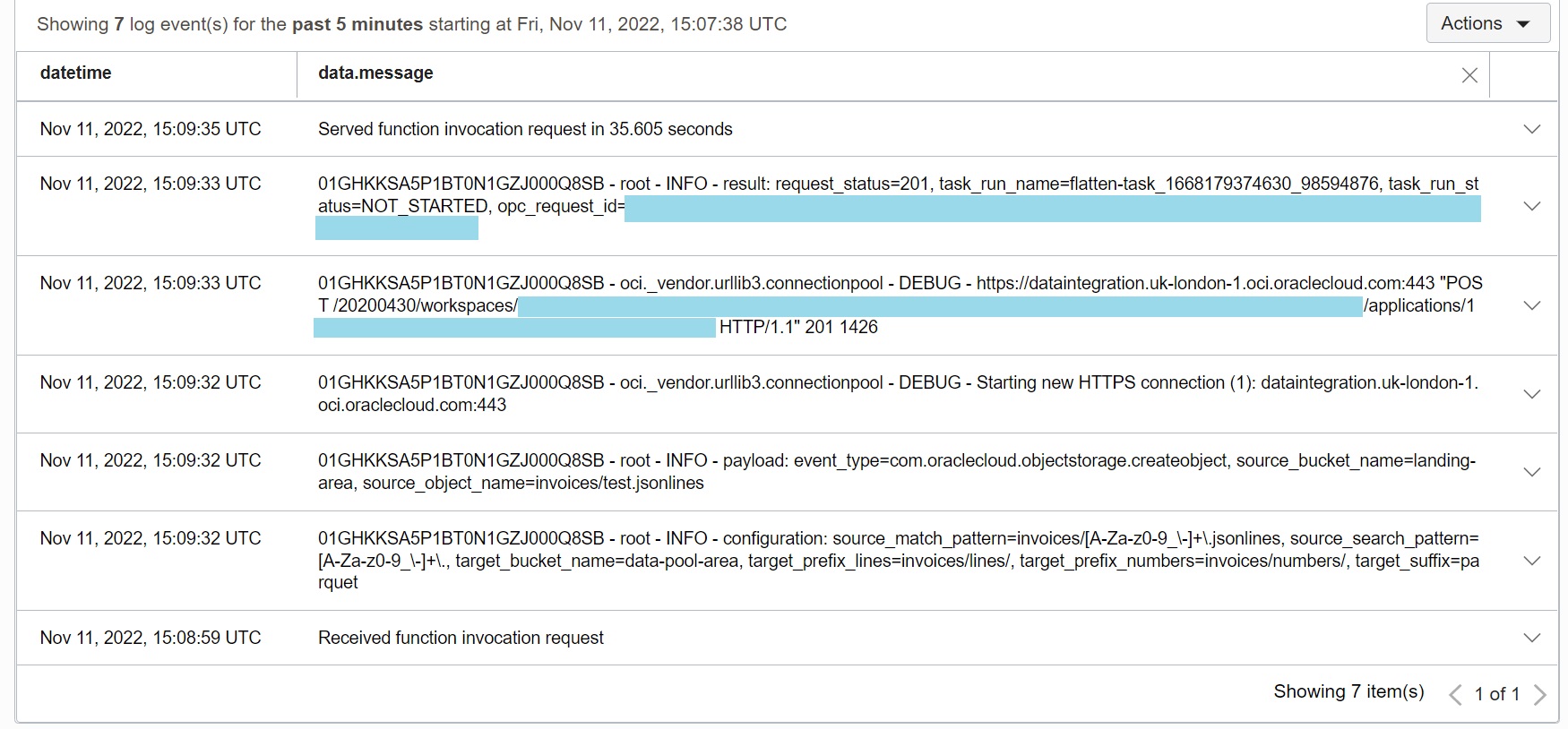
The logs produced by the function fn-flatten-with-di consist of both “system” entries
generated by the FDK and OCI SDK, and information messages in the function code. As a good
practice, I believe that a function like this should log the parameters of the OCI DI Task
and the outcome of the Task execution. And all the errors and warnings, of course.
-
The function request lasted 35 seconds. The reason for this long time is that this was “cold start” invocation, when OCI Functions has to provision the required compute and network resources and load the function image from the Registry. Subsequent invocations will be dramatically faster.
-
The values of Configuration parameters as well as Runtime parameters (from Event) are visible in logs to confirm the OCI DI Task is invoked with expected values.
-
The status of the OCI DI Task execution request is
201; in other words, the request was successful. There are also values oftask_run_nameandopc_request_idfor tracking the execution in OCI Data Integration. -
The status of the OCI DI Task run is
NOT_STARTED. This demonstrates the fact that Task invocation is asynchronous; the function submits the request, the request is queued, and executed by OCI Data Integration later.
Task Run
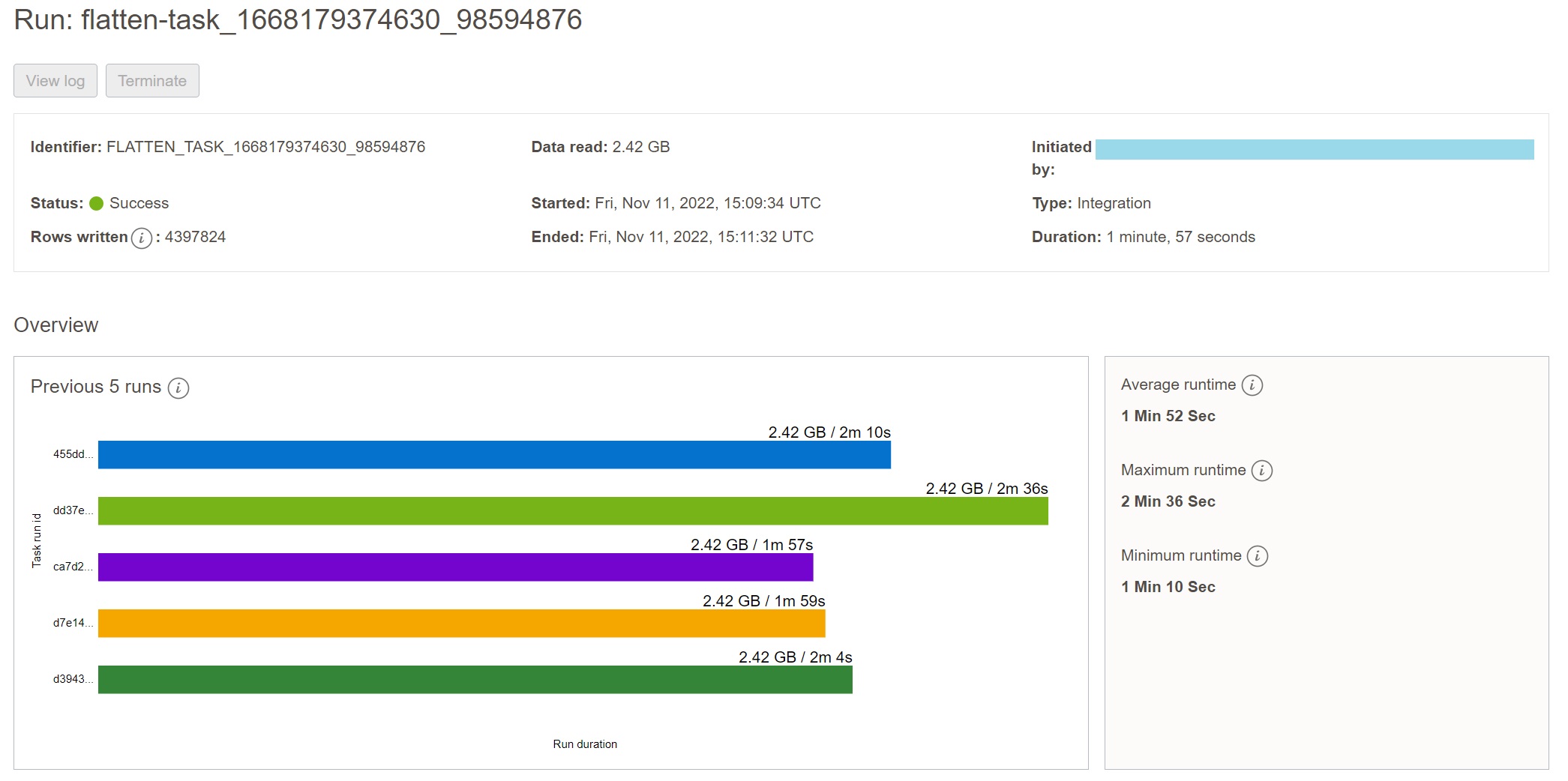
You can verify the OCI DI Task executed by the function fn-flatten-with-di was
successful by looking into the runs in the OCI Data Integration console. You can see that
the task run identifier flatten-task_1668179374630_98594876 correspond with the value in
the function logs.
Final Notes
Execution of OCI Data Integration tasks by OCI Functions and Events is useful for many use cases, such as automated transformation of files in the Object Storage. This post shows how you can call DI Task programatically, write OCI Function to invoke the DI Task, pass the parameters to the DI Task, and trigger the OCI Function from OCI Event.
In the real-life scenario, you will probably want to extend the OCI Function by more checks validating the input parameters, by robust error handling, and by additional debugging messages. You might also consider case when single Bucket contains multiple entities and you want to invoke different DI Task depending on the entity.
Resources
- OCI Data Integration documentation is available here: OCI Data Integration Overview.
- Post describing invocation of OCI Data Integration tasks from OCI CLI from David Allan: Executing Tasks using OCI CLI in Oracle Cloud Infrastructure Data Integration.
- OCI Functions documentation is available here: OCI Functions Overview
- OCI Functions Quickstart describing how to use Functions with OCI Cloud Shell: OCI Functions Quickstart with Cloud Shell
- Examples of OCI Functions are available here: OCI Functions Samples on GitHub
- OCI Events documentation is available here: OCI Events Overview